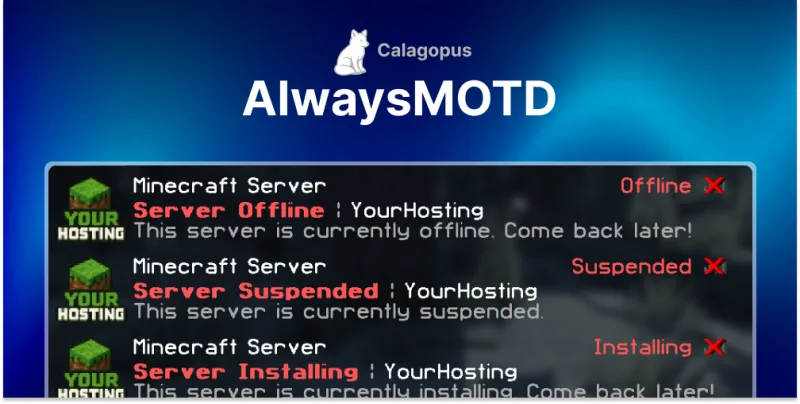
Important: This addon only adds some files to your nodes. Because of that, these steps need to be done on your Wings server , not the panel.
Installation
Step 1: Create Directory & Upload Files
Create the AlwaysMOTD directory and upload the files:
sudo mkdir -p /opt/alwaysmotdcd /opt/alwaysmotd
Upload all AlwaysMOTD files to
/opt/alwaysmotd
using SFTP or your preferred file transfer method.
Step 2: Install Dependencies
Install Node.js and project dependencies:
curl -fsSL https://deb.nodesource.com/setup_18.x | sudo -E bash -sudo apt-get install -y nodejsnpm installStep 4: Open Ports
If you use UFW (Standard on an Pterodactyl installation) or another firewall, you got to open the following ports:
4001, 4002, 4003 and 4004.
If you use UFW, run this command:
sudo ufw allow 4001:4004/tcpStep 5: Configure
Edit
config.yml
with your Pterodactyl API keys and port range:
nano config.yml| Setting | Description |
|---|---|
| Panel URL | Your Pterodactyl panel URL |
| Application API Key | Application API key with server read and allocation read permissions |
| Client API Key | Client API key generated from an admin account. |
| Port Range | Range of ports to monitor for offline servers |
| MOTD Message | Custom message to display when server is offline |
Step 6: Run the Service
Install PM2 and start the service:
sudo npm install -g pm2sudo pm2 start index.js --name alwaysmotdsudo pm2 save
sudo pm2 startupManaging AlwaysMOTD
| Command | Description |
|---|---|
sudo pm2 status |
Check status |
sudo pm2 logs alwaysmotd |
View logs |
sudo pm2 restart alwaysmotd |
Restart AlwaysMOTD (Apply changes in
config.yml
)
|
sudo pm2 stop alwaysmotd |
Stop AlwaysMOTD |
Need Help?
Join our Discord Server and open a ticket for support.
© 2026 AlwaysMOTD - BuiltByOtte . All rights reserved.