Installation
Step 1: Upload Extension Files
Upload the ContactPage extension files to your Paymenter installation:
/var/www/paymenter/extensions/Others/ContactPage/
Upload all ContactPage files to
extensions/Others/ContactPage/
using SFTP or your preferred file transfer method.
Step 2: Enable Extension
Enable the extension in your Paymenter admin panel:
Admin Panel → Extensions → Others → ContactPage → EnableConfiguration
Settings
Access contact page settings at Admin Panel → Extensions → Others → ContactPage → Configure :
| Setting | Description | Default |
|---|---|---|
| Email Recipients | Comma-separated list of emails to receive messages | Admin email |
| Enable CAPTCHA | Require CAPTCHA verification | On |
| Success Message | Message shown after form submission | "Thank you for contacting us!" |
| Enable Attachments | Allow file attachments | Off |
| Max Attachment Size | Maximum file size in MB | 5 |
Custom Fields
You can add custom fields to the contact form:
- Go to Admin Panel → Extensions → ContactPage → Fields
- Click Add Field
- Choose field type (text, select, textarea, etc.)
- Set field label and validation rules
- Click Save
Email Templates
Customize the email template:
- Go to Admin Panel → Extensions → ContactPage → Email Template
- Edit the subject and body
-
Use placeholders like
{name},{email},{message} - Click Save
Usage
For Visitors
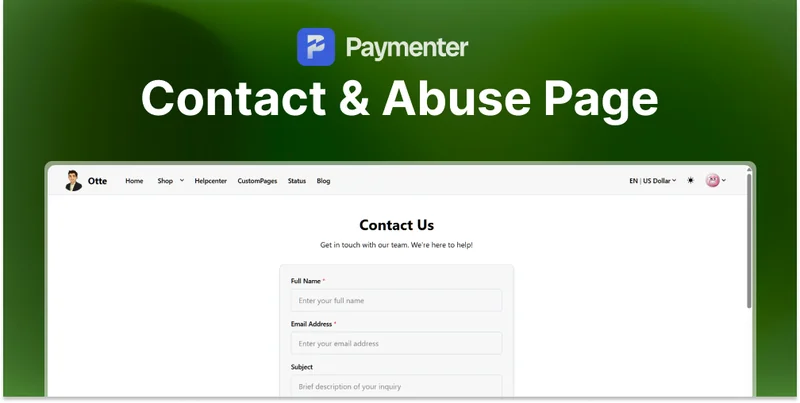
The contact page is accessible at:
https://yourdomain.com/contactFor Administrators
View submitted messages at:
Admin Panel → Extensions → ContactPage → MessagesFeatures:
- View all submissions
- Mark as read/unread
- Reply directly from admin panel
- Export submissions
Need Help?
Join our Discord Server and open a ticket for support.
© 2026 ContactPage Extension - BuiltByOtte . All rights reserved.