Installation
Step 1: Upload Extension Files
Upload the NavbarEditor extension files to your Paymenter installation:
/var/www/paymenter/extensions/Others/NavbarEditor/
Upload all NavbarEditor files to
extensions/Others/NavbarEditor/
using SFTP or your preferred file transfer method.
Step 2: Enable Extension
Enable the extension in your Paymenter admin panel:
Admin Panel → Extensions → Others → NavbarEditor → EnableThe extension will automatically run database migrations when enabled.
Configuration
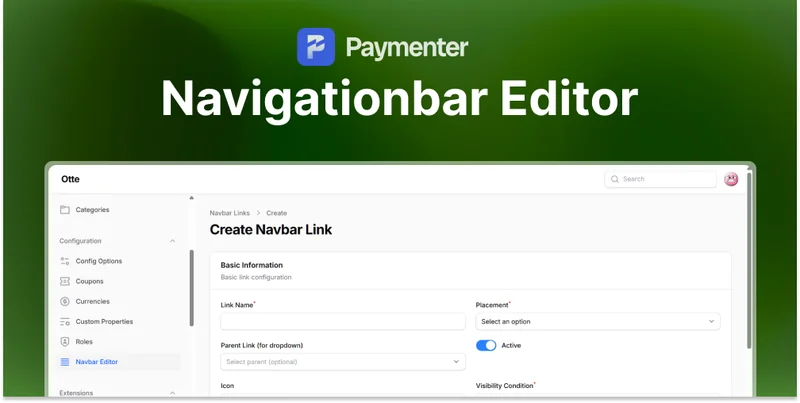
Accessing Navbar Manager
After enabling, access the Navbar Manager:
Admin Panel → Navbar ManagerCreating Navigation Links
- Click Create to add a new link
- Fill in the required fields:
| Field | Description |
|---|---|
| Label | Text displayed in the navbar |
| URL | Link destination (absolute or relative) |
| Icon | Optional icon class |
| Order | Display position in navbar |
| Visibility | Show to all, logged in, or guests only |
Settings
| Setting | Description |
|---|---|
| Position | Where to place custom links (left, right, dropdown) |
| Show Icons | Display icons next to link labels |
| Mobile Behavior | How links appear on mobile devices |
Link Types
You can create different types of links:
-
Internal Links
:
/dashboard,/tickets -
External Links
:
https://example.com - Dropdown Menus : Group multiple links under one parent
- Dividers : Visual separators between links
Usage
Managing Links
- Drag & Drop : Reorder links by dragging
- Edit : Click edit icon to modify a link
- Delete : Remove links you no longer need
- Toggle : Enable/disable links without deleting
Visibility Options
Control who sees each link:
- Everyone : Visible to all visitors
- Logged In : Only authenticated users
- Guests : Only non-authenticated visitors
- Admins : Only admin users
Need Help?
Join our Discord Server and open a ticket for support.
© 2026 NavbarEditor Extension - BuiltByOtte . All rights reserved.