Requirements
- Paymenter v1.x.
- Any Paymenter theme. Canvas uses the colours, fonts and light or dark mode of your theme.
Installation
Step 1: Upload the extension
Extract the zip and upload the Canvas folder to the extensions of Paymenter:
/var/www/paymenter/extensions/Others/Canvas/Make sure Canvas.php is directly inside that folder, and that the web server user owns the files:
chown -R www-data:www-data /var/www/paymenter/extensions/Others/CanvasStep 2: Enable the extension
Admin Panel → Extensions → Others → Canvas → EnableEnabling Canvas creates its database tables. Your pages are under Administration → Canvas pages.
Step 3: Give your roles access
Admins with full access can use Canvas right away. For other admin roles, turn on the permissions you want under Administration → Roles:
| Permission | Allows |
|---|---|
| View Canvas pages | See the list, open the preview and see unpublished pages on the site. |
| Create Canvas pages | Make new pages and duplicate pages. |
| Update Canvas pages | Edit pages and restore earlier versions. |
| Delete Canvas pages | Delete pages. |
| Use the HTML block and page CSS in Canvas | Add the HTML block and write CSS for a page. |
Your first page
- Go to Administration → Canvas pages → New Canvas page.
- Pick a Type and a Title.
- Under Start from, pick a template or an empty page.
- Change the blocks under Content, then open the Page tab to set the address.
- Press Preview to check it, turn on Published and save.
Page types
| Type | What it is |
|---|---|
| Page with its own address | A normal page, such as /hosting or /services/vps. It can also be your homepage. |
| Page for a product | Blocks for one product. They replace its product page, or show above or below it. |
| Reusable section | A group of blocks without an address. You place it on any page with the Reusable section block. |
Templates
A new page can start from one of these templates. You can change everything afterwards.
- Empty page
- Hosting homepage: hero, figures, features, products and reviews.
- Game server landing page: hero, popular games, features and locations.
- VPS landing page: hero, a pricing table with a monthly and yearly switch, and text.
- About us: hero, text and image, a timeline and a call to action.
- Product page: hero, features and the plans of the product with checkout buttons.
Blocks
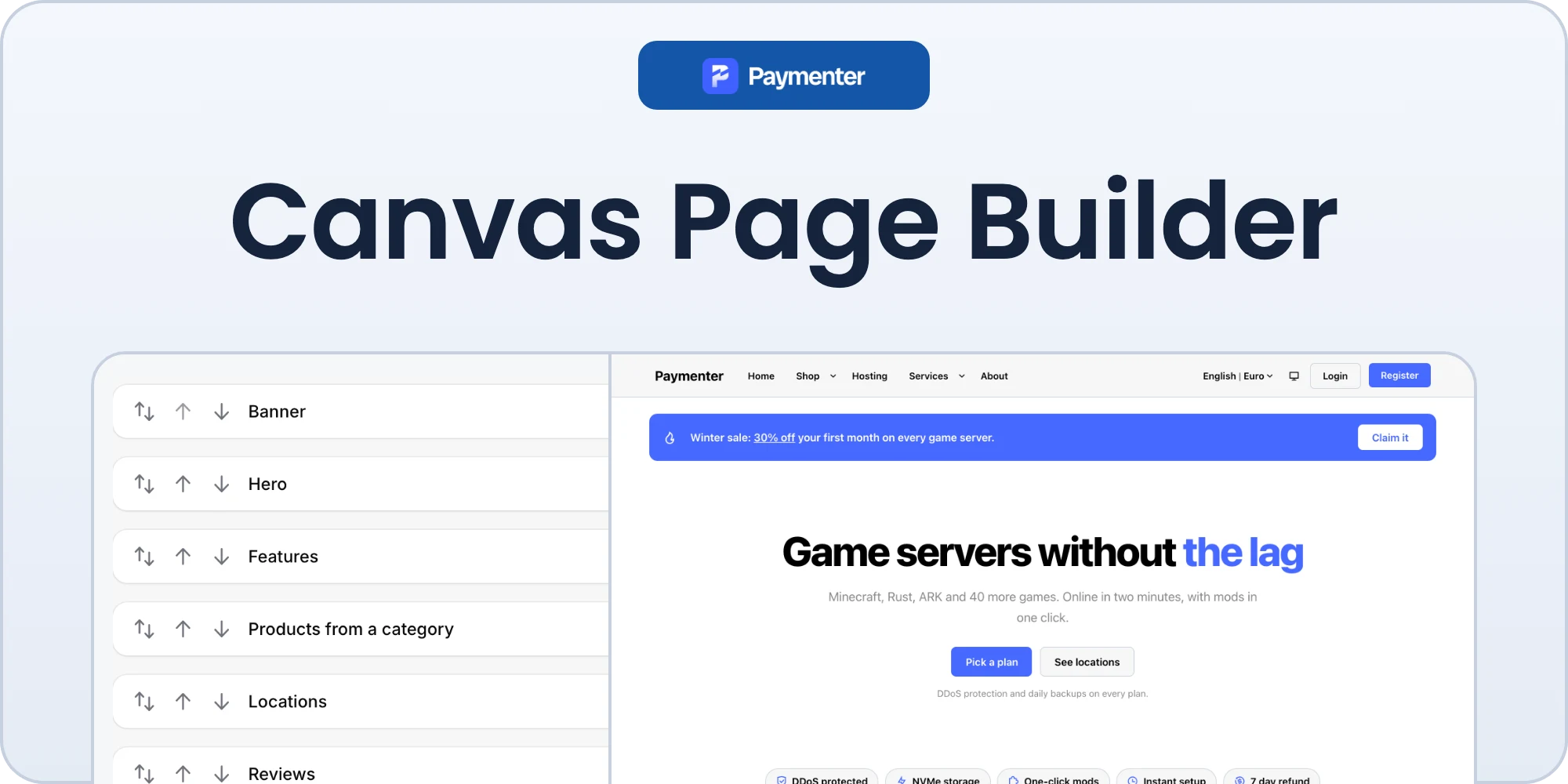
Press Add block to pick one of the 28 blocks. Drag a block by its handle to move it, or use the arrows. The copy icon duplicates a block. Most blocks have a Layout field with two to four layouts.
| Block | Layouts and notes |
|---|---|
| Hero | Centred, text left with an image, text on a background image, or centred with a screenshot below. Normal, tall or full screen height. |
| Text and image | Text with an image on the left or right. |
| Features | Cards, icons without cards, a list with icons or a row of badges. |
| Products from a category | The live products of a category with their prices and order buttons. Cards or rows. |
| Plans of one product | Every billing period of one product, each with a button straight to checkout. Cards or rows. |
| Pricing table | Your own plans with a monthly and yearly switch. Start a feature line with - to show it as not included. |
| Figures | Numbers like uptime or customers, in a panel or plain. |
| Reviews | Cards, a sliding carousel or one large quote, with stars. |
| Questions | A fold-out list or two columns that are always open. |
| Logos | One row, an endless scrolling row or a grid of tiles. |
| Steps | Numbered cards or a timeline. |
| Locations | Data centres with a flag, as cards or a compact list. |
| Image cards | Cards with an image, a title, text and a link. |
| Screenshot | An image in a browser window or with rounded corners. |
| Video | YouTube (without tracking cookies) or Vimeo. |
| Announcements | Your latest Paymenter announcements. Only shown when announcements are turned on in Paymenter. |
| Countdown | A live countdown to a date. Hides itself after the end, unless you fill in a text for that moment. |
| Text | Markdown with tables, lists, links and headings. Narrow or full width, left or centred. |
| Comparison table | Compare up to 5 plans row by row with ticks and dashes, and highlight one column. |
| Gallery | A grid of images. |
| Image | One image, narrow, at content width or full width. |
| Embed | A map, a form or a status page. The address must start with https://. |
| Banner | A strip with an icon, a text and a button. Brand colour, panel, green or orange. |
| Contact options | Ways to reach you, such as e-mail, live chat and tickets. |
| Reusable section | Shows a section you made once. See Reusable sections. |
| Call to action | A closing block with buttons. Brand colour, panel or centred without a box. |
| Space | Empty space: small, medium or large. |
| HTML | Your own HTML. Only for admins with the HTML permission. |
Writing text
- In titles, put
[square brackets]around words to show them in your brand colour. - Answers and the Text block support Markdown, such as
**bold**and[a link](https://example.com). - Icons are Remix icon names, such as
shield-check-lineorfire-line. - Lists that say "one per line" take one item on each line.
Block layout
Every block has a closed Layout section at the bottom:
| Setting | Options |
|---|---|
| Background | None, panel colour, brand colour or an image. |
| Spacing | Default, none, small or large. |
| Show on | All screens, desktop only or mobile only. |
| Anchor | A name like plans, so buttons can link to #plans. |
| CSS classes | Your own classes, for page CSS or your theme. |
Products and checkout
The Products from a category block shows the products of a category with their current prices. The Plans of one product block shows every billing period of one product. Each button goes straight to checkout with that plan selected. Prices follow the currency of the visitor, so you never type a price twice.
The Pricing table block is for plans you write yourself, with a monthly and yearly switch.
Product pages
- Make a Canvas page with the type Page for a product.
- In the Page tab, pick the Product.
- Under Show the blocks, choose Instead of the normal product page, Above the normal product page or Below the normal product page.
When you replace the page, add a Plans of one product block so visitors can still order. Leave its product empty and it uses the product of the page.
Addresses and homepage
The Address in the Page tab can have more parts, such as services/vps. Use lowercase letters, numbers and dashes. Addresses that Paymenter already uses, such as products, account or admin, are not allowed.
Under Homepage, choose Use as the homepage to replace your homepage, or Show below the homepage content to add blocks below it. Only one page can replace the homepage.
Navigation
Turn on Show in the navigation in the Page tab. Fill in a Label to use a shorter name than the title, and a Dropdown such as Services to group pages in one menu. Order sets the position.
Visibility
Who can see it shows a page to everyone, only to visitors who are not logged in, or only to logged-in customers. Others get a not-found page.
Pages that are not Published are only visible to admins, with a notice at the top.
Reusable sections
Make a Canvas page with the type Reusable section and add blocks to it, for example a support banner. Then add the Reusable section block to any page and pick it. When you change the section, every page that uses it changes too.
Preview
Press Preview at the top of the editor to see your unsaved changes inside your theme. Switch between Desktop, Tablet and Mobile, or open the preview in a new tab. Visitors never see a preview.
Version history
Every save that changes the blocks or the page CSS keeps the version before it. Press History in the editor, pick a version and press Restore. The current version stays in the history, so you can always go back. Canvas keeps the last 25 versions of each page.
SEO
The SEO tab has:
- Title in search results: uses the page title when empty.
- Description and Keywords.
- Share image: shown when the page is shared on Discord or social media.
- Hide this page from search engines.
Canvas also adds the canonical address of the page. A product page without a share image uses the product image.
Design settings
These settings apply to every Canvas page and work on top of your theme:
Admin Panel → Extensions → Others → Canvas| Setting | Options |
|---|---|
| Content width (px) | The maximum width of the blocks. |
| Space between blocks | Compact, normal or roomy. |
| Corners | Square, slightly rounded, rounded or very rounded. |
| Card style | Outline, filled without a border, or raised with a shadow. |
| Headings | Bold or lighter. |
| Blocks appear while scrolling | No animation, fade in, or fade in and rise. Visitors who ask their device for less motion never see animations. |
| Accent colour | Leave empty to use the brand colour of your theme. |
Custom CSS
The Style tab has CSS for this page. It only loads on that page. Every Canvas page sits inside .canvas, so you can target it without touching the rest of your theme. Give a block your own class under CSS classes to style just that block:
.canvas .my-section h2 {
  letter-spacing: -0.02em;
}
Troubleshooting
| Problem | Solution |
|---|---|
| The page gives a 404 | Check that the page is published and that Who can see it includes the visitor. Log out to test what guests see. |
| The address is not allowed | Paymenter or another page already uses it. Pick another address, or put it under a different first part. |
| The product page did not change | Check the product in the Page tab and that the page is published. Clear the cache with php artisan optimize:clear if you use route caching. |
| Show in the navigation is missing | Only pages with their own address can be in the navigation. Product pages and sections cannot. |
| The HTML block or page CSS is missing | Your role needs the permission Use the HTML block and page CSS in Canvas. |
| Announcements block is missing | Turn on announcements in Paymenter first. |
Need help?
Visit builtbyotte.com/help. We reply to every message within 24 hours.