Features
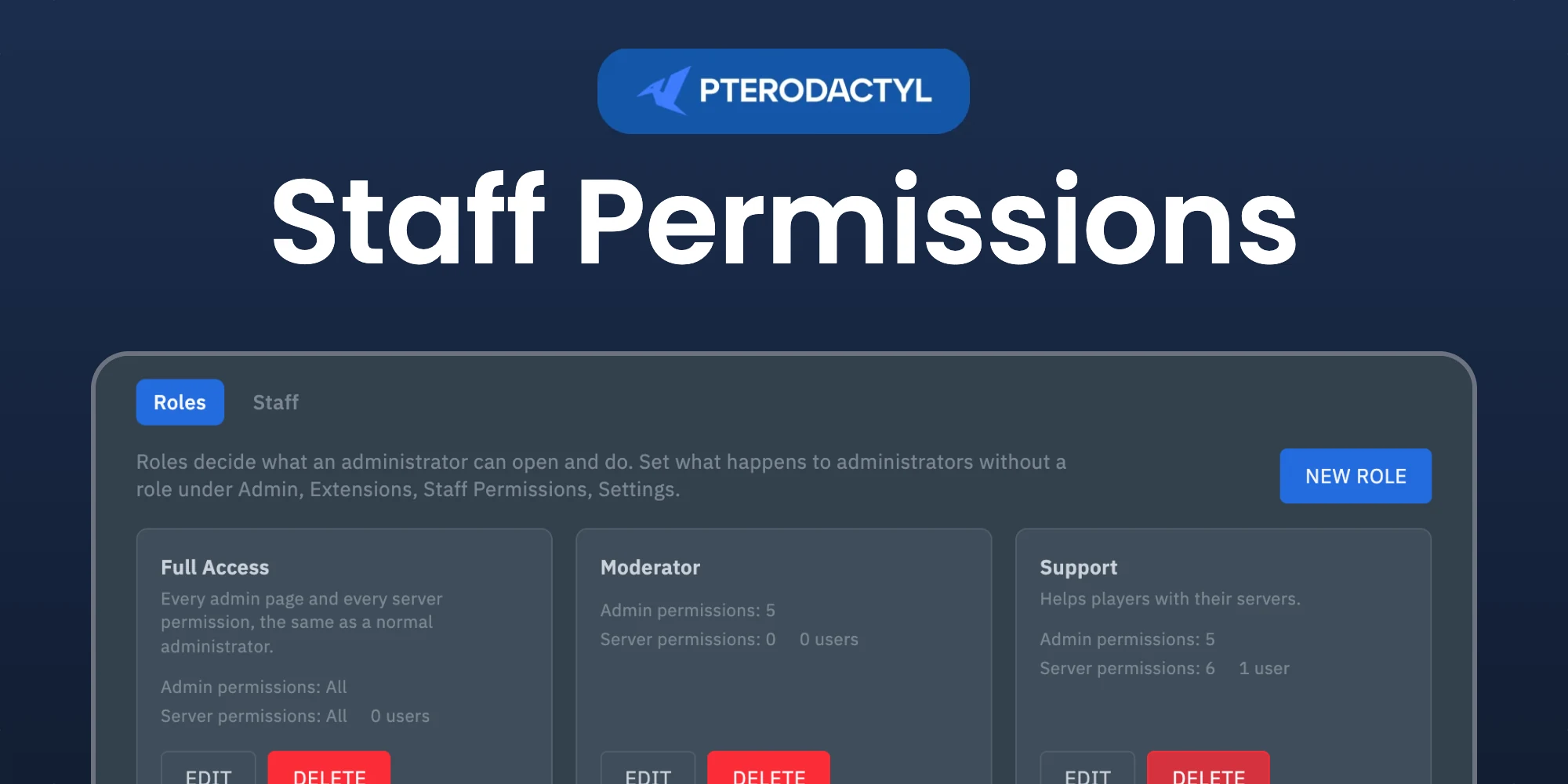
- Roles with a permission for every admin page: view, create, update and delete for users, servers, nodes, locations, eggs, mounts, tags, database hosts, API keys and extensions, update for panel settings, and view for the activity log.
- A permission for the admin pages of every installed extension.
- Server permissions per role, picked from every permission the panel has registered, extensions included, just like creating a subuser.
- A role with full permissions behaves like a normal administrator, and a role with server permissions sees all servers under "other servers".
- Optionally switch the default administrator permission off, so administrators only get what their role gives them.
- Edit or delete a role at any time. Assign a role from the admin area or the command line.
Installation
- Sign in to your Panel as an administrator and go to Admin → Extensions.
- Click Install and upload
staff-permissions-1.0.0.pteroext. - Toggle the extension on and reload the page. The migrations run automatically and a Full Access role is created.
php artisan p:extension:install staff-permissions-1.0.0.pteroext --enableHow it works
Staff stay administrators in the database, because the panel only shows its admin area to administrators. A role then restricts what that administrator can actually do:
- The admin pages and their API are limited to the permissions of the role. A page without permission answers with an error.
- On servers the administrator does not own and is not a subuser of, only the server permissions of the role apply. This covers the panel, the websocket and SFTP.
- Administrators with a role cannot use the application API, because an application API key would bypass the role. Roles with full admin permissions can.
Users who are not administrators are not affected by any of this.
Setting up
- Open Admin → Staff Roles and create your roles. Tick the pages and server permissions each role needs. Pages load data from other pages, so a role that edits servers also needs view on nodes, eggs and users.
- Open the Staff tab, search for a user and pick a role. With the default setting this also makes the user an administrator, and removing the role removes it again.
- Give yourself a role too, for example Full Access, before you switch the default administrator permission off.
Settings
Open Admin → Extensions → Staff Permissions → Settings.
| Setting | What it does |
|---|---|
| Administrators without a role | Keep full access leaves administrators without a role untouched. No access makes the default administrator permission useless: administrators without a role cannot open any admin page and only see servers they own or belong to. |
| Make users administrators when they get a role | Turns the administrator flag on when a role is assigned, and off again when the role is removed from a user who was promoted this way. |
Command line
php artisan staff-permissions:roles
php artisan staff-permissions:assign admin@example.com "Full Access"
php artisan staff-permissions:assign admin@example.com none
"No access" can only be saved while you yourself have a role with full access, so you cannot lock yourself out from the admin area. If it happens another way, assign yourself a role with the command above.
Good to know
- Managing staff roles, changing the settings of Staff Permissions, and installing, enabling, disabling or removing extensions always need a role with full access, because each of them could be used to gain every permission.
- Changing or deleting another administrator, and making a user an administrator, also need full access.
- Staff members can only give subusers permissions their own role has.
- The menu of the admin area is not hidden per role. A user who opens a page without permission sees an error instead.
- The restrictions are enforced while the extension is enabled. Disabling the extension removes them.
- You cannot change your own role from the admin area.
Support
Discord: https://discord.gg/DP3atuhnsB