Installation
Step 1: Download the extension
Download
world-manager-1.0.0.pteroext
from your purchase.
Step 2: Install in the Panel
- Sign in to your Panel as an administrator.
- Go to Admin → Extensions.
- Click Install and upload the
.pteroextfile. - Toggle the extension on to enable it, then reload the page.
A Worlds tab now appears in the sidebar of each server.
Alternative: install from the command line
php artisan p:extension:install world-manager-1.0.0.pteroext --enableManage worlds
Open a server and click Worlds in the server sidebar. The Worlds tab lists world folders found in the server's root directory. It shows the active world, world size, last modified time, and available dimensions such as the Nether and The End.
- Refresh the list after making changes outside the Panel.
- Make active changes the
level-nameinserver.properties. - World options opens the editable settings from
server.properties. - Delete permanently removes the selected world files after confirmation.
Stop the server before switching or deleting worlds. Restart the server after changing the active world or any world option so Minecraft loads the new configuration.
Add a world
Click Add a world and choose one of the available methods:
-
Create new: choose a world type and seed. The extension updates
server.properties; the new world is generated on the next restart. -
From a link: paste a direct link to a
.zipor supported archive such as.tar.gz. The Panel downloads and extracts it into the chosen world folder. - Upload a file: choose a world archive from your computer. Supported archive formats include ZIP, TAR, GZ, BZ2, XZ, RAR, and 7Z files.
Give the world a unique folder name. When installing or creating a world, you can
choose Make this the active world. This updates level-name;
restart the server before expecting Minecraft to load it.
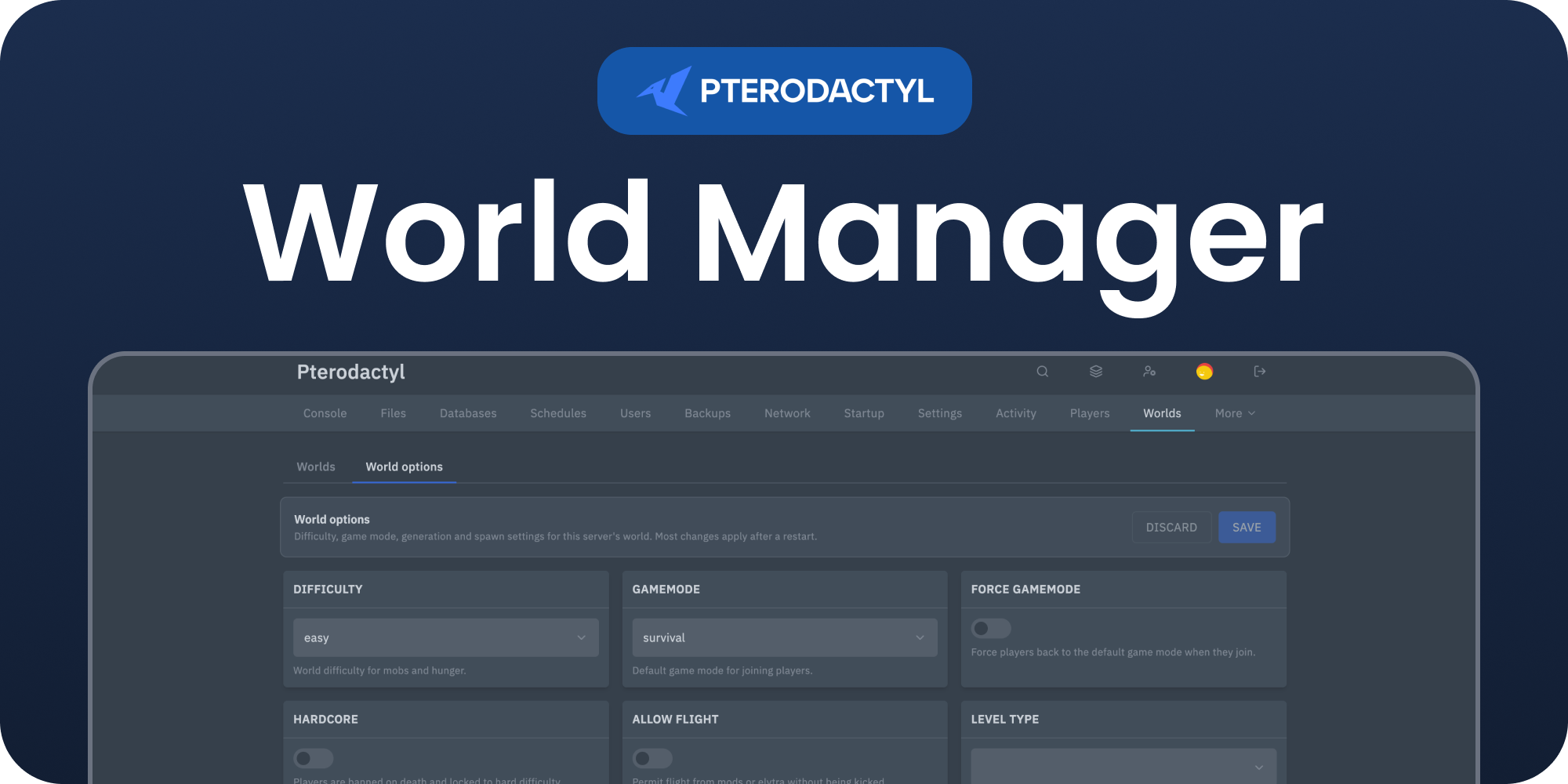
World options
Open the World options tab to edit the settings detected in
server.properties. Depending on the server software, these can include:
- Difficulty and game mode
- World generation and seed settings
- Spawn protection and spawn-related settings
- Structure generation, flight, PvP, and other server options
Changed values are highlighted until you save or discard them. Click Save
to write the changes to server.properties. Most changes require a server
restart and some only apply when a new world is generated.
Permissions
Viewing worlds requires file.read. Creating, installing, switching, or
editing world settings requires both file.create and
file.update. Deleting a world requires file.delete.
Server owners and administrators normally have these permissions; grant them to sub
users in the server's User editor when needed.
Managing the extension
| Action | How |
|---|---|
| Disable without removing | Toggle the extension off, or php artisan p:extension:disable world-manager |
| Update | Install the newer .pteroext over the top from the Extensions page |
| Remove | Click Remove on the Extensions page, or php artisan p:extension:remove world-manager |
Need Help?
Join our Discord Server and open a ticket for support.
© 2026 World Manager, BuiltByOtte . All rights reserved.