Installation
Step 1: Upload Extension Files
Upload the DiscordLink extension files to your Paymenter installation:
/var/www/paymenter/extensions/Others/DiscordLink/
Upload all DiscordLink files to
extensions/Others/DiscordLink/
using SFTP or your preferred file transfer method.
Step 2: Enable Extension
Enable the extension in your Paymenter admin panel:
Admin Panel → Extensions → Others → DiscordLink → EnableThe extension will automatically run database migrations when enabled.
Configuration
Configure Discord OAuth
Set up Discord OAuth for account linking:
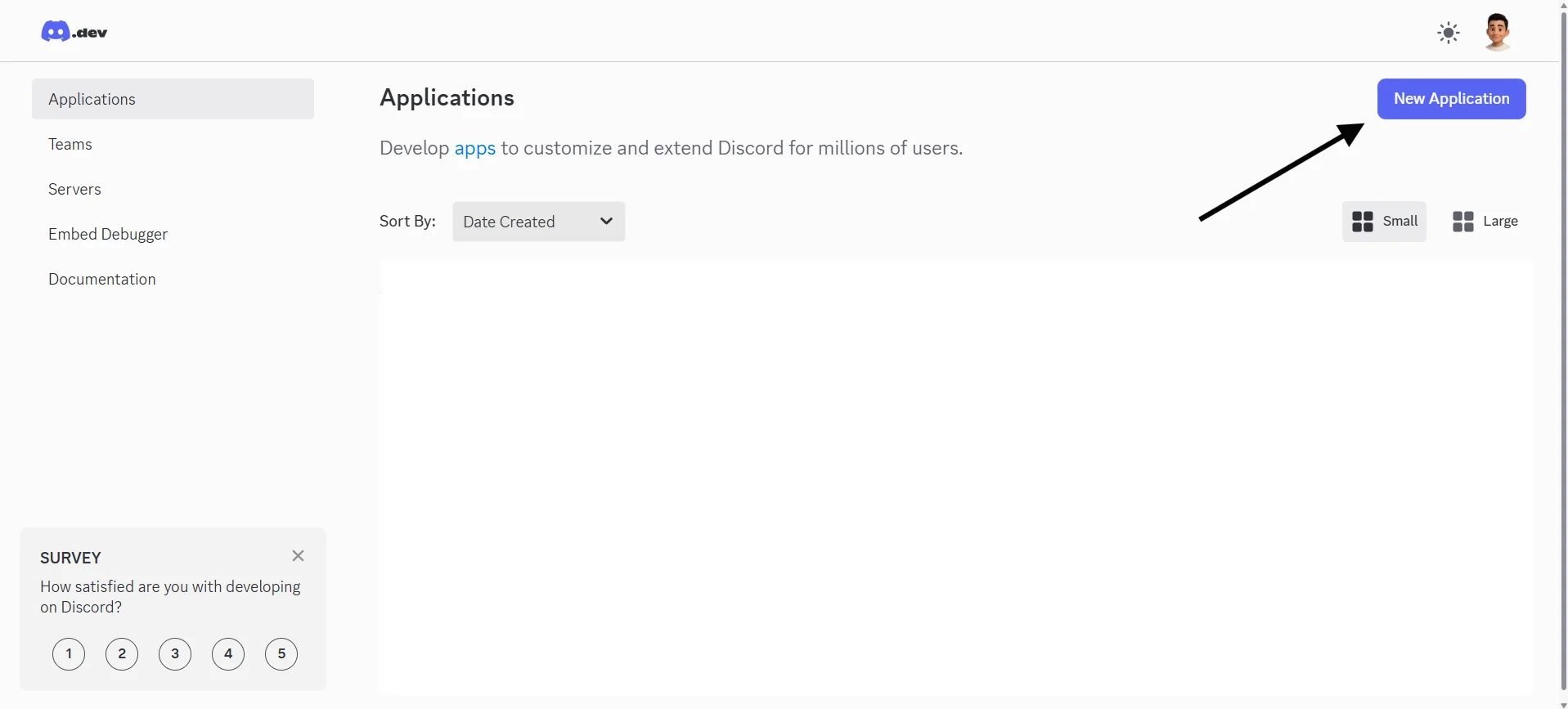
- Go to Discord Developer Portal
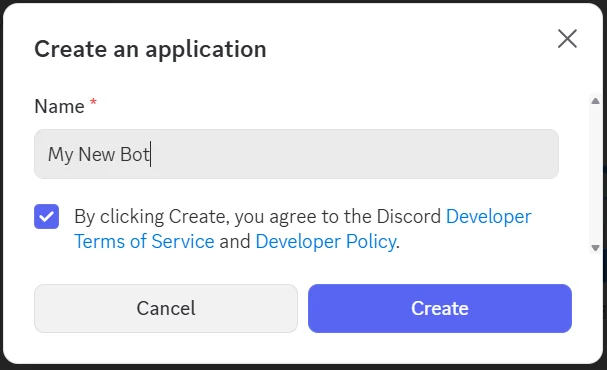
- Create a new application:
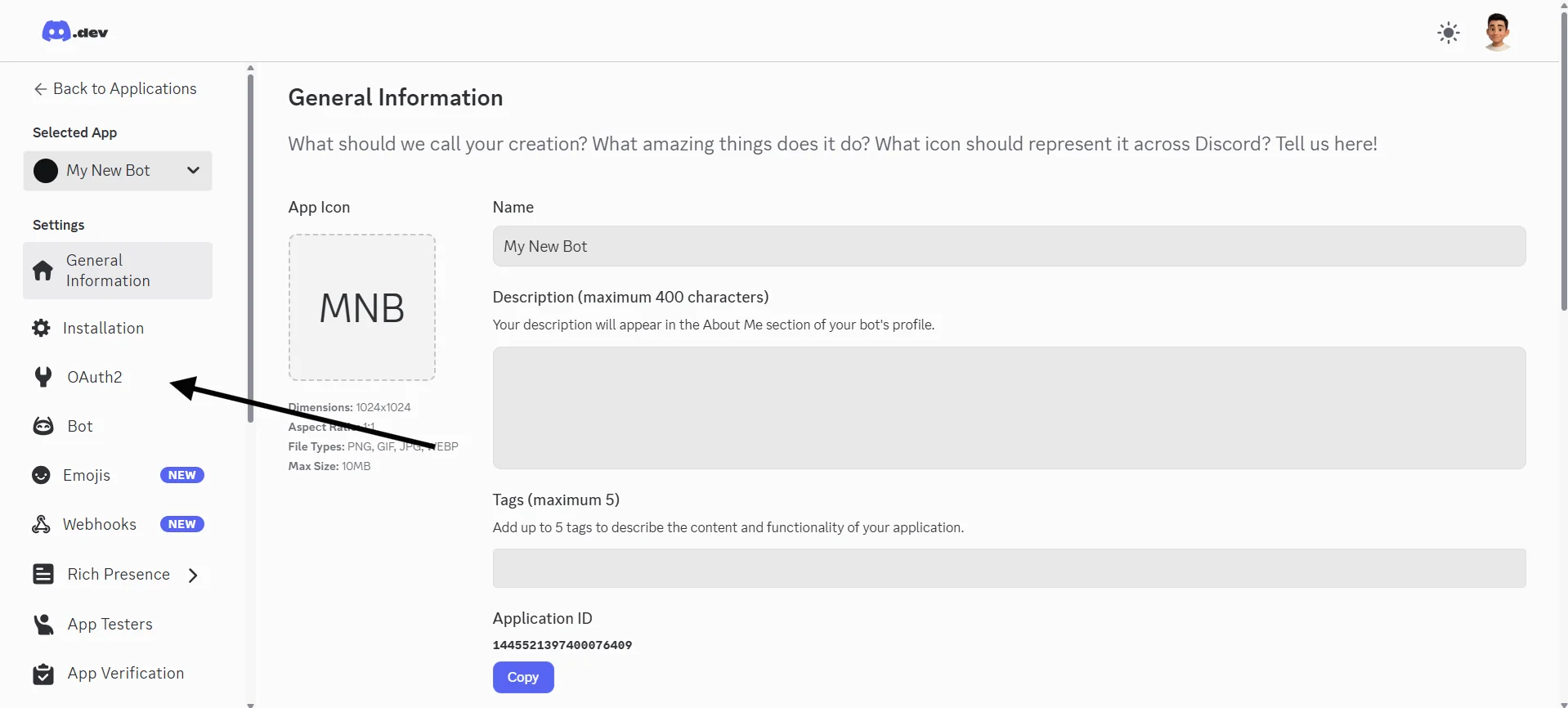
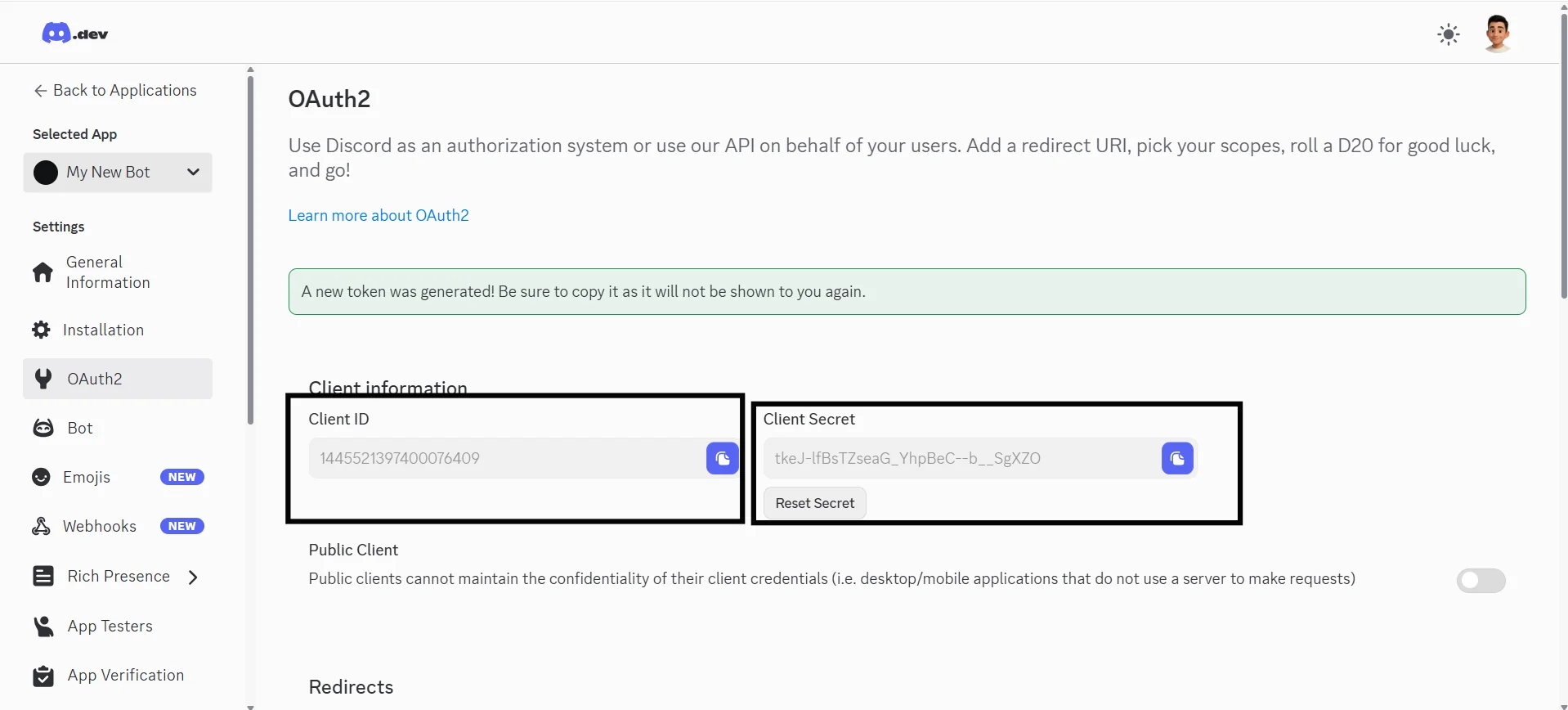
- Go to OAuth2 → General and copy your Client ID and Client Secret
-
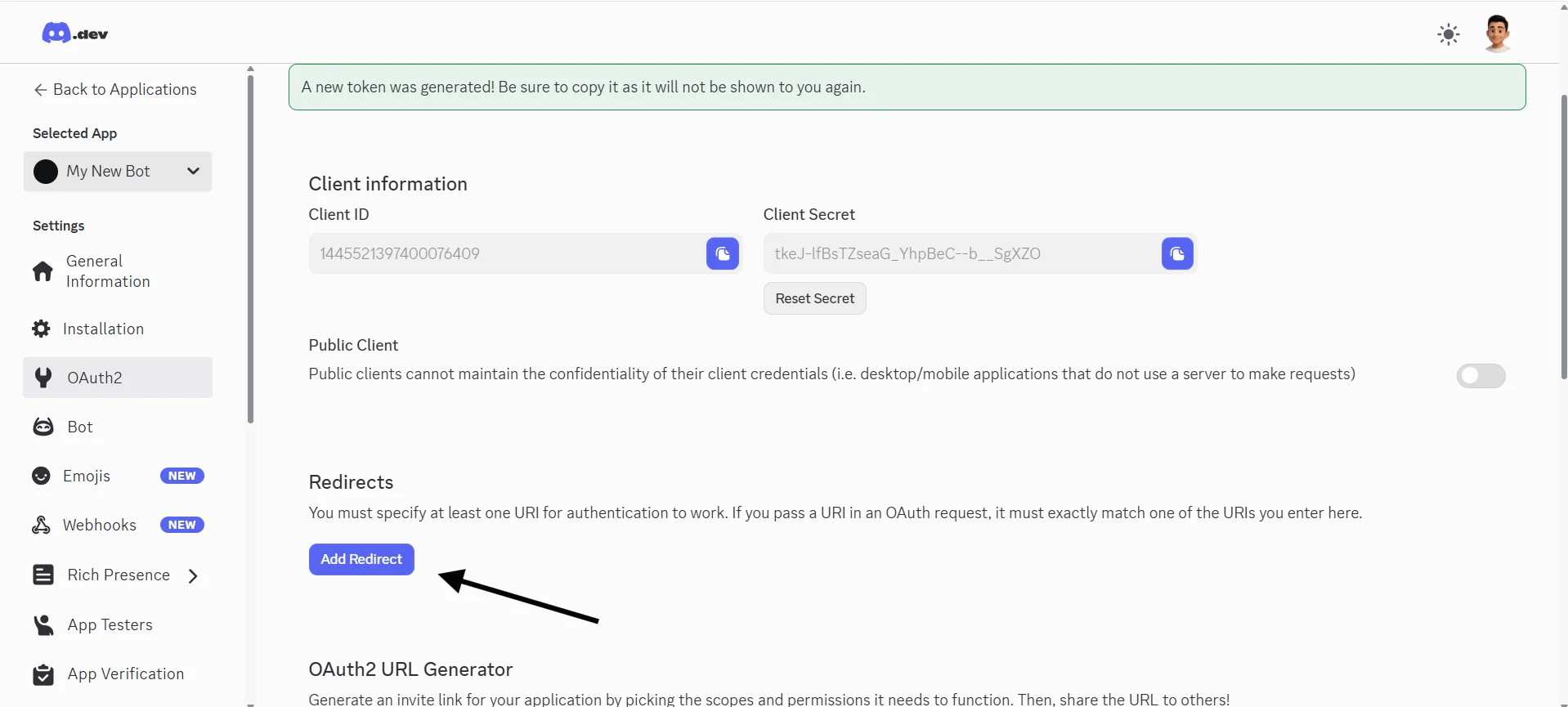
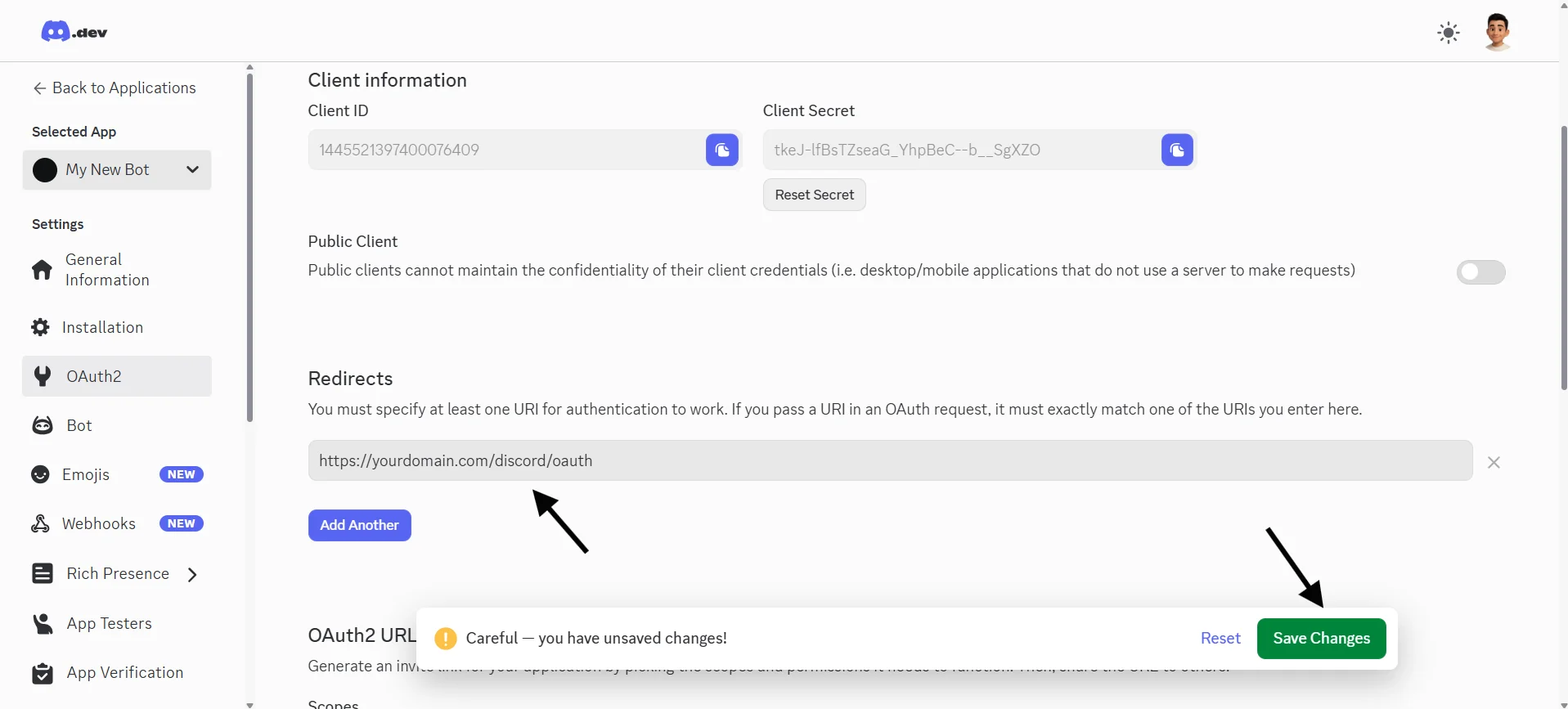
Add redirect URI:
https://yourdomain.com/discord/oauth
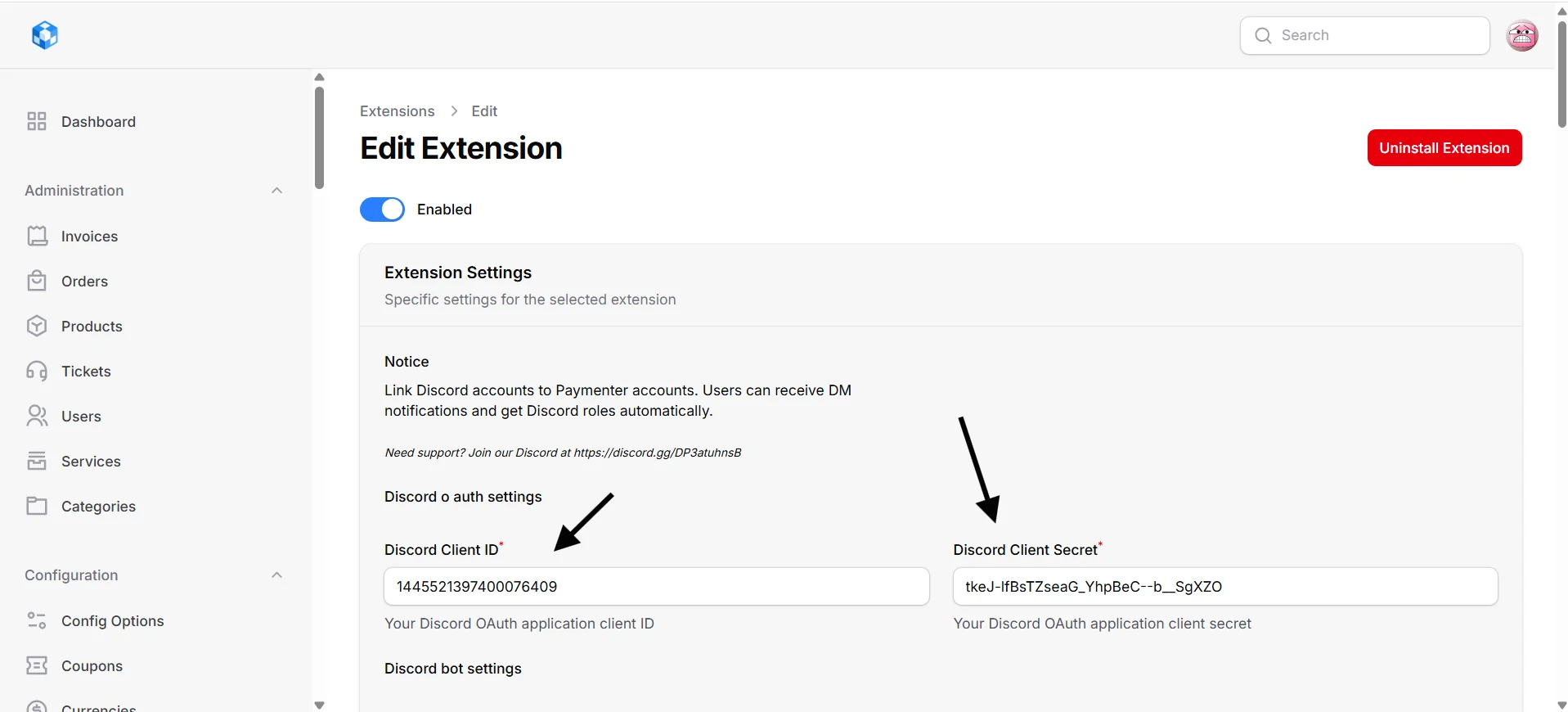
- Enter the Client ID and Client Secret in the extension configuration
 Important:
Replace
Important:
Replace
yourdomain.com
with your actual domain name.
Configure Discord Bot
To enable role management and DM notifications, set up a Discord bot:
- In your Discord application, go to the Bot section
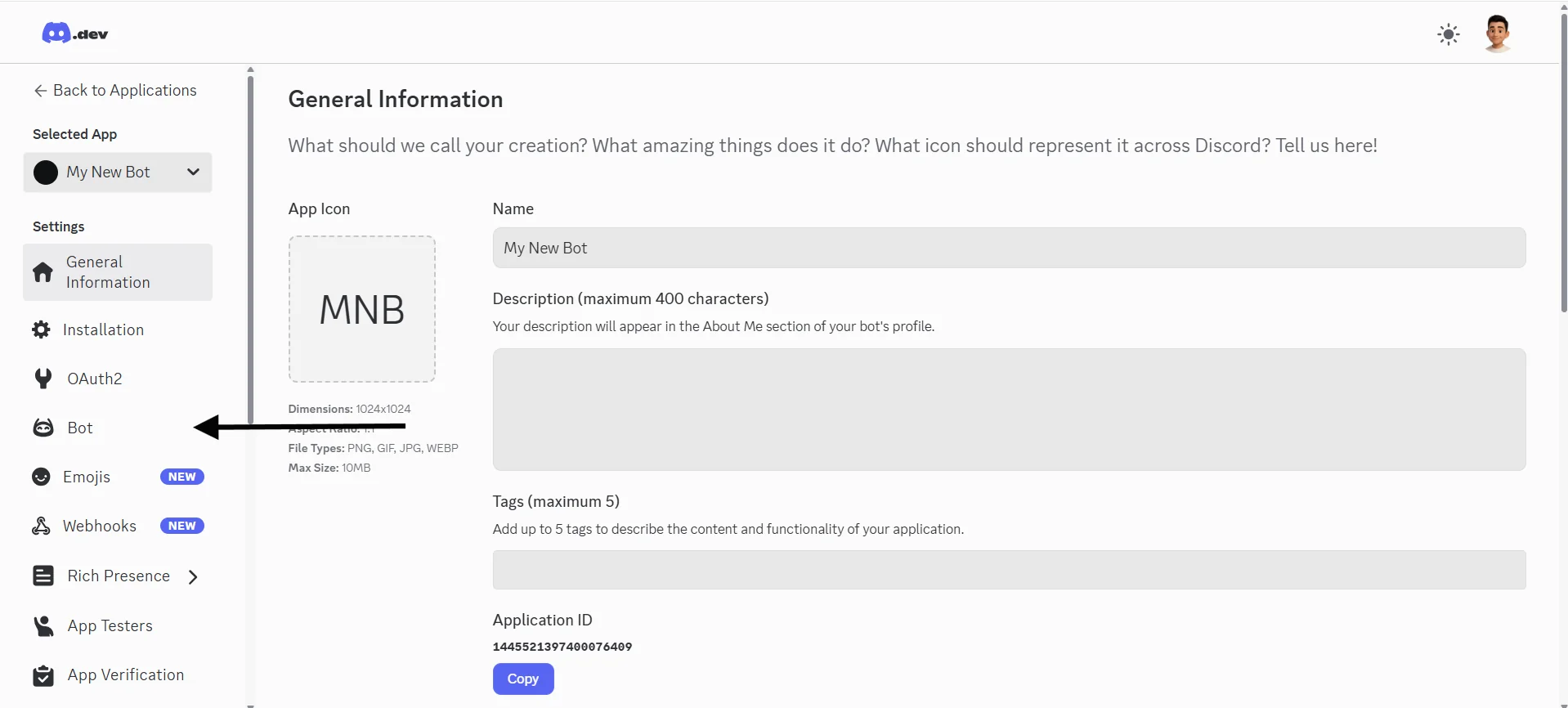
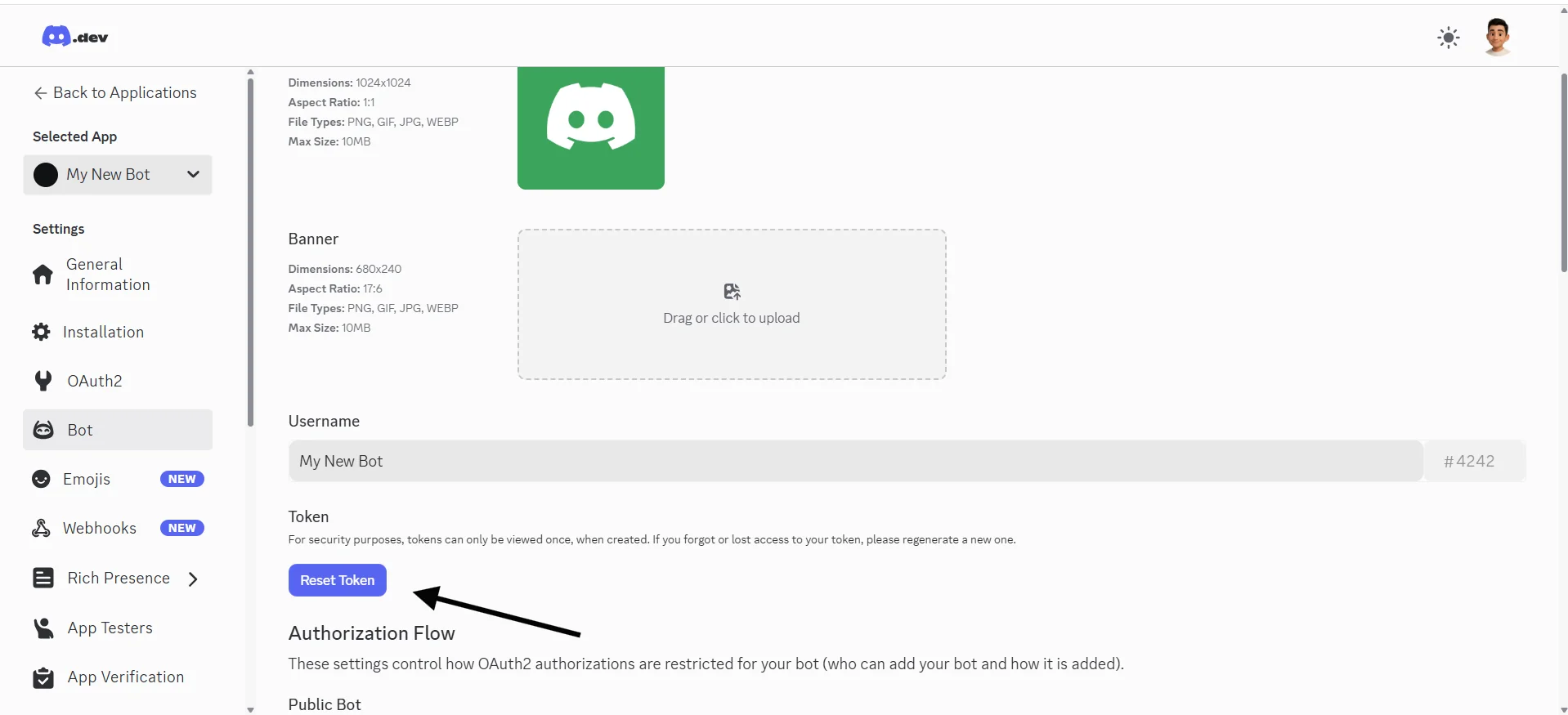
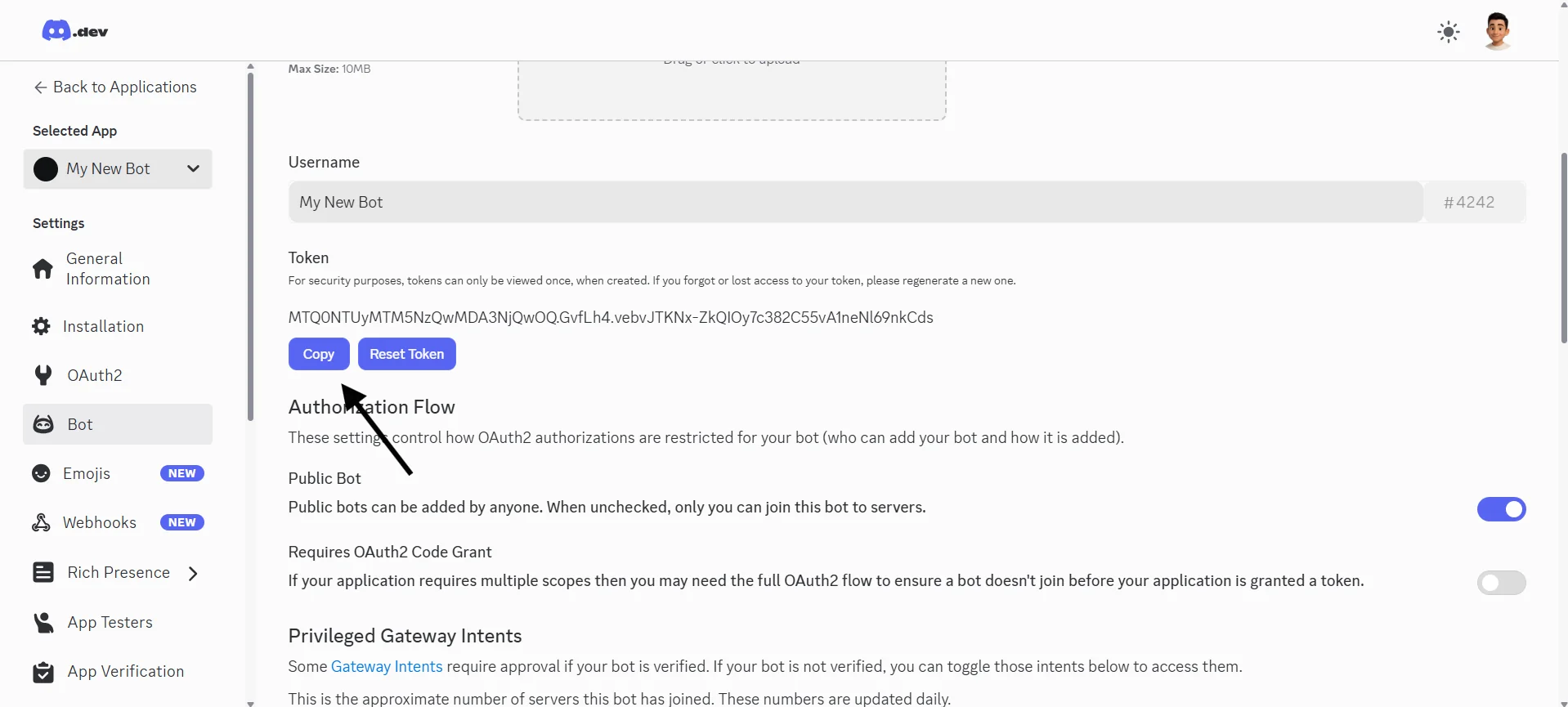
- Click on reset token and copy the bot token
- Invite the bot to your server
- Copy your Server (Guild) ID:
- Enable Developer Mode in Discord (User Settings → Advanced → Developer Mode)
- Right-click your server → Copy Server ID
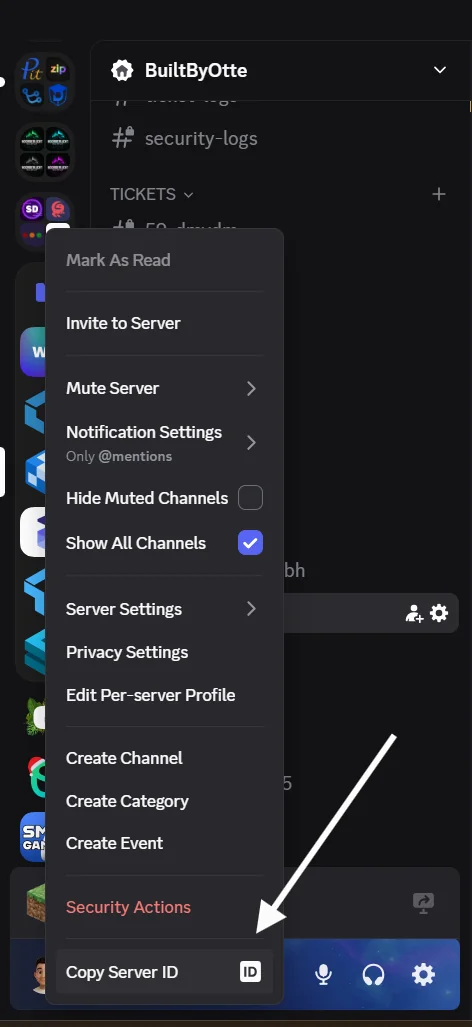
- Enter the bot token and guild ID in the extension configuration
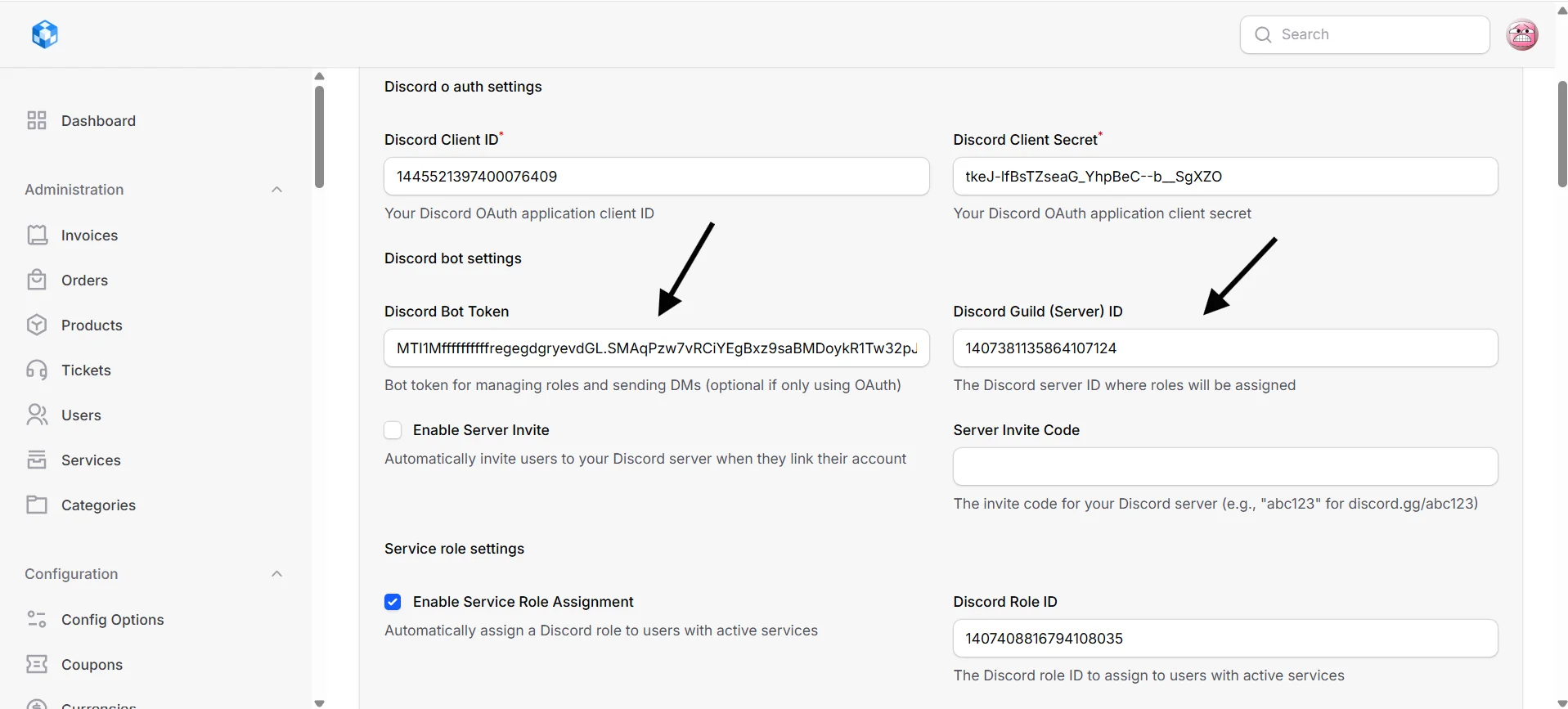
Configure Extension Settings
After enabling, configure the extension settings:
| Setting | Description |
|---|---|
| Enable Service-Based Role | Automatically assign Discord roles to users with active services |
| Discord Role ID for Active Services | The role ID to assign (right-click role → Copy ID in Discord) |
| Include Free Services | Assign role to users with free services (price = 0) |
| Include Paid Services | Assign role to users with paid services (price > 0) |
| Enable Ticket DM Notifications | Send Discord DMs for ticket events |
| Default Notification Events | Select which events are enabled by default for new users |
| Customize Notification Messages | Configure friendly messages for each event type |
Usage
For Users
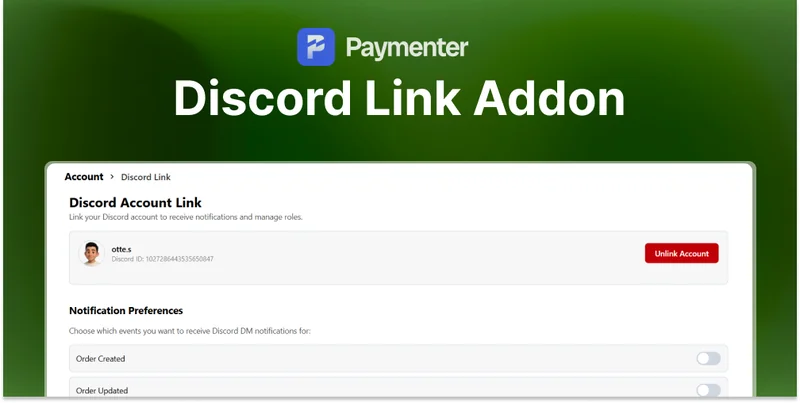
- Go to Account → Discord Link
- Click "Link Discord Account"
- Authorize the application on Discord
- Configure notification preferences
For Administrators
- View all linked Discord accounts in Admin Panel → Discord Links
- View notification history in Admin Panel → Discord Notification History
- View role assignment history in Admin Panel → Discord Role History
- Configure default notification events and messages in extension settings
Need Help?
Join our Discord Server and open a ticket for support.
© 2026 Discord Link Extension - BuiltByOtte . All rights reserved.