Installation
Step 1: Upload Extension Files
Upload the Newsletter extension files to your Paymenter installation:
/var/www/paymenter/extensions/Others/Newsletter/
Upload all Newsletter files to
extensions/Others/Newsletter/
using SFTP or your preferred file transfer method.
Step 2: Enable Extension
Enable the extension in your Paymenter admin panel:
Admin Panel → Extensions → Others → Newsletter → EnableThe extension runs its database migrations automatically when enabled, and again after an update.
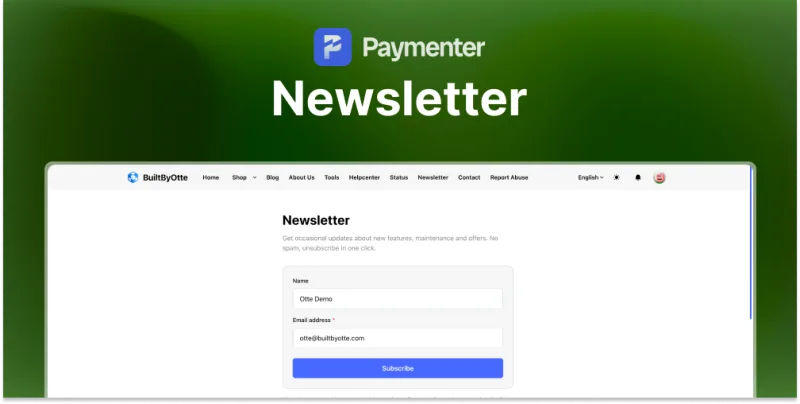
The signup page
Visitors subscribe at
/newsletter
. By default they first receive a confirmation email, and they are only subscribed once they click the
link in it. That is the
Require confirmation
setting, which you can turn off to subscribe people straight away.
Logged in customers manage their preference at
/account/newsletter
.
Every email contains an unsubscribe link. Unsubscribing works without logging in.
Subscribers
Your list lives at Admin Panel → Newsletter → Subscribers . A subscriber has one of three statuses: pending (not confirmed yet), confirmed, or unsubscribed.
Someone who unsubscribes stays on the list with the status unsubscribed, so they are not accidentally mailed again through another group.
Groups
Groups decide who receives a campaign. Manage them at Admin Panel → Newsletter → Groups . There are four types:
| Type | Members |
|---|---|
| Newsletter subscribers | Everyone who signed up through the form |
| All customers | Every user account in Paymenter |
| Customers with a service | Filter by product, category, or service status |
| Hand picked subscribers | A list you select yourself |
For the first type you can choose whether unconfirmed signups are counted as well.
Campaigns
Build and send campaigns at Admin Panel → Newsletter → Campaigns . A campaign has a subject and content written in a rich editor, a group to send to, and a live preview filled with sample data.
Sending runs through the queue in batches. The Batch size setting controls how large those batches are.
A campaign is in one of four states: draft, sending, sent, or failed. Each campaign shows how many emails were sent and how many failed, with the error message included.
The queue worker has to be running. Without it a campaign stays on sending.
Templates
Admin Panel → Newsletter → Templates holds reusable starting points for campaigns, with the same live preview.
Auto mails
Auto mails go out on their own. Set them up at Admin Panel → Newsletter → Auto mails .
| Trigger | When it fires |
|---|---|
| Service expires soon | A number of days before the expiry date |
| Invoice overdue | A number of days after the due date |
| Customer without any purchase | A number of days after signup, if they never ordered |
| Win back a cancelled customer | A number of days after a cancellation |
| Service created | Right after a service is activated |
| Service suspended | Right after a service is suspended |
| Invoice paid | Right after an invoice is paid |
The first four run on a schedule and take a waiting time in days. The last three react to an event immediately.
There is a switch to send only once per customer, and a test button that sends the mail to your own address.
Paymenter already emails about three of these events. If you turn those auto mails on, first disable the matching template under Settings → Notifications , otherwise the customer receives two emails.
| Trigger | Paymenter template |
|---|---|
| Service created | new_server_created (Service activated) |
| Service suspended | server_suspended (Service suspended) |
| Invoice paid | invoice_paid (Invoice paid) |
Scheduling
The scheduled auto mails run through the
newsletter:auto-mails
command, which is scheduled every hour as soon as the extension is enabled. This only works if
Paymenter's cron is already set up. To run it by hand:
php artisan newsletter:auto-mailsPlaceholders
Placeholders work in the subject and the content of campaigns, templates, and auto mails.
| Placeholder | Value |
|---|---|
{{name}} |
Full name of the recipient |
{{first_name}} |
First name only |
{{email}} |
Email address |
{{company}} |
Your store name |
{{store_url}} |
Link to your store |
{{unsubscribe_url}} |
Unsubscribe link, always include this |
{{service_name}} |
Most recent service of the customer |
{{service_status}} |
Status of that service |
{{service_expires}} |
Expiry date of that service |
{{invoice_number}} |
Most recent invoice number |
{{invoice_status}} |
Status of that invoice |
{{invoice_due}} |
Due date of that invoice |
{{year}} |
Current year |
The preview in the admin uses real data where it exists, and fills in a sample value where it does not.
Configuration
| Setting | Description | Default |
|---|---|---|
| Require email confirmation (double opt-in) | Send a confirmation email before someone is subscribed | On |
| Subscribers per batch while sending | How many emails are sent per queued job | 50 |
| Show a link in the navigation | Add a link to the customer account menu | On |
| Navigation Label | Text of that link | Newsletter |
| Navigation Icon | Remix icon name for that link | ri-mail-send |
| Page Title | Heading on the signup page | Newsletter |
| Page Intro | Line under the heading | Get occasional updates about new features, maintenance and offers. No spam, unsubscribe in one click. |
| Name Label | Name | |
| Name Placeholder | Your name (optional) | |
| Email Label | Email address | |
| Email Placeholder | you@example.com | |
| Submit Button Text | Subscribe | |
| Submitting Label | Subscribing... | |
| Privacy Note | Small print under the form | We only use your address to send this newsletter. Every email contains an unsubscribe link. |
| Success (confirmation required) | Shown when a confirmation email was sent | Almost there. Check your inbox and confirm your subscription. |
| Success (no confirmation) | Shown when confirmation is turned off | You are subscribed. Thank you! |
| Already Subscribed | This address is already subscribed. | |
| Confirmed Page Title | Heading on the confirmation page | Subscription confirmed |
| Confirmed Page Message | Thanks, you are on the list. You can unsubscribe from any email we send. | |
| Unsubscribed Page Title | Heading after unsubscribing | You have been unsubscribed |
| Unsubscribed Page Message | You will not receive our newsletter any more. You can subscribe again at any time. | |
| Confirmation Email Subject | Confirm your newsletter subscription | |
| Confirmation Email Intro | Please confirm that you want to receive our newsletter. |
Troubleshooting
| Symptom | Cause |
|---|---|
| "We could not send the confirmation email" | Mail is not configured in Paymenter, or the mail server refused the connection |
A campaign stays on sending |
The queue worker is not running |
| Auto mails never go out | Paymenter's cron is not set up, or the auto mail is switched off |
| Customers get two emails for the same event | The matching Paymenter notification template is still enabled |
| Nobody is in the group | With Newsletter subscribers, only confirmed signups count unless unconfirmed ones are included |
Need Help?
Join our Discord Server and open a ticket for support.
© 2026 Newsletter - BuiltByOtte . All rights reserved.