Turning on two-factor authentication adds a second code, generated by an authenticator app, to every Pterodactyl login. It protects the accounts you enable it on. It does not protect your billing store, and it does not scan anything for malware. If you run a hosting business, your Pterodactyl admin accounts are the single highest-value target in your whole stack, because whoever holds those credentials can reach every node, every server, and every customer's files behind them.
This guide covers what two-factor authentication actually does on Pterodactyl, how to make it a team-wide requirement rather than something only the cautious staff member bothers with, and what it leaves uncovered so you know which other tools belong alongside it.
Why panel logins deserve extra protection
A compromised customer account on a billing store is bad, but it is contained: the attacker sees one person's invoices and maybe one server. A compromised Pterodactyl admin account is a different category of problem. Depending on the permissions attached to it, that single login can touch every node you run. Pterodactyl also changed ownership recently, covered in our piece on the Infraly LLC acquisition, which is one more reason to treat account security as something you check periodically rather than something you set once and forget.
How two-factor authentication works on Pterodactyl
The general pattern, common to most TOTP-based two-factor setups, is that each user enables it individually from their own account settings: you scan a QR code into an authenticator app, then confirm with the six-digit code it generates. From that point on, logging in requires the password plus the current code from the app.
We want to be straightforward about one thing: the exact menu wording and steps can shift between panel releases, and Pterodactyl's account settings page is exactly the kind of detail that can change after a change in maintainership. Rather than walk through screenshots that might not match your installed version, check the account settings page on your own panel directly. If you don't see a two-factor option where you'd expect it, that's worth confirming against your panel's version before assuming it isn't there.
Don't lose your recovery codes
When you enable two-factor authentication, you're normally issued a set of recovery codes at setup time. Store them in a password manager, not a sticky note or a chat message to yourself. If you ever lose the device generating your codes, those recovery codes are what get you back into your own account without waiting on someone else to intervene.
Making 2FA a team requirement, not an option
If more than one person has admin access to your panel, two-factor authentication enabled by some of them still leaves the door open through whichever account nobody bothered to protect. That's a policy problem as much as a technical one. A few practical habits:
- Require every admin account to enable two-factor authentication before it's granted access, not after.
- Review the admin list periodically and remove accounts for staff or resellers who no longer need access.
- Treat any account with node-level or full admin permissions as higher priority than accounts scoped to a handful of servers.
If you'd rather reduce the number of separate logins your team juggles in the first place, our Advanced Pterodactyl | SSO & More addon ($4.99, 54 purchases, 5.0/5 from 6 reviews) adds single sign-on alongside a quicker server overview and custom server names. Centralizing logins through SSO doesn't replace two-factor authentication, but it does mean fewer separate passwords floating around for someone to guess or reuse. See the documentation for what it covers.
What 2FA does not protect against
Two-factor authentication only guards the login itself. It has nothing to say about what's already sitting inside a hosted server, and nothing to do with your Paymenter storefront. The table below lays out where each layer's responsibility actually starts and stops.
| Layer | What it protects | What it doesn't touch |
|---|---|---|
| Panel login 2FA | Pterodactyl admin and staff account logins | Files already on a server, your billing store, customer accounts |
| Security Scanner ($12.99, 79 purchases, 5.0/5 from 8 reviews) | Detecting possible malware and security issues on hosted servers | Panel account logins, your Paymenter store |
| Security Addon for Paymenter ($5.99, 59 purchases, 5.0/5 from 6 reviews) | Blocking users, IPs, VPNs, and alt accounts on your Paymenter store | Pterodactyl panel logins, malware on hosted servers |
None of these three overlap. That's actually the useful part: enabling two-factor authentication on your admin accounts, running Security Scanner against what customers upload, and running Security Addon on your storefront cover three genuinely different attack surfaces rather than three versions of the same fix. See Security Scanner's docs and Security Addon's docs for the specifics of each.
What about Calagopus?
If you run Calagopus instead of, or alongside, Pterodactyl — including if you've recently gone through a migration from Pterodactyl to Calagopus — we don't have confirmed details on its two-factor implementation to share here. Check your Calagopus account settings directly rather than assuming it mirrors Pterodactyl's setup exactly.
A simple checklist before you turn it on
- Enable two-factor authentication on your own admin account first.
- Require it for every other admin and staff account with panel access.
- Store the recovery codes issued at setup in a password manager.
- Remove or downgrade dormant admin accounts you no longer need.
- Pair it with malware protection on hosted servers and separate protections on your Paymenter store, since none of these substitute for each other.
Two-factor authentication is one lock among several, not the whole door. It's a genuinely low-effort, high-value one to add first, but the accounts on your Pterodactyl panel are only one part of what a hosting business needs to secure — your storefront and the servers themselves need their own layers too.
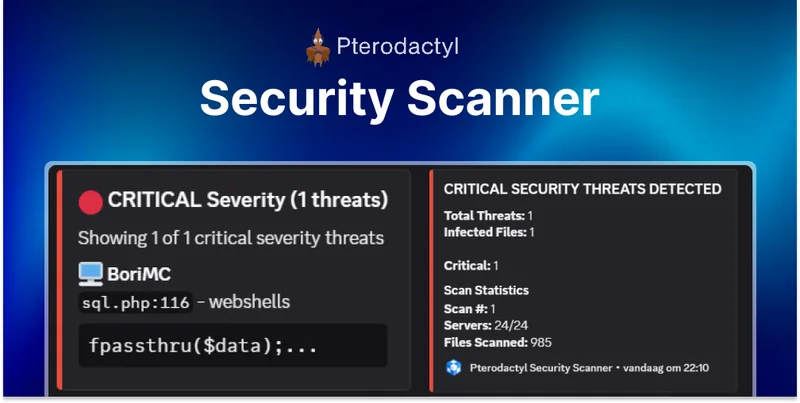 Security Scanner | Pterodactyl
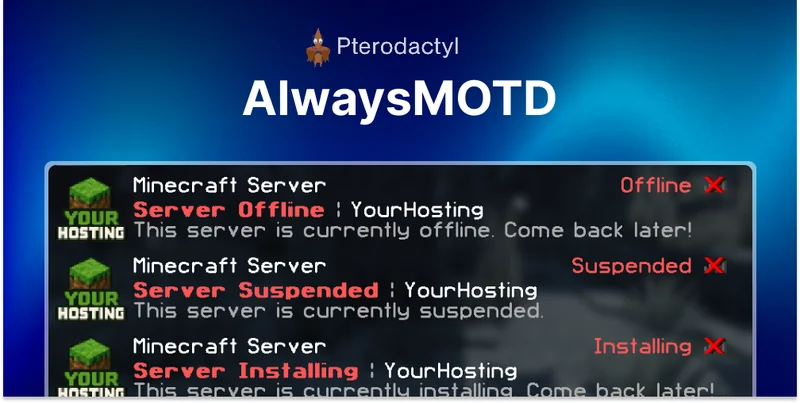 AlwaysMOTD Addon | Pterodactyl