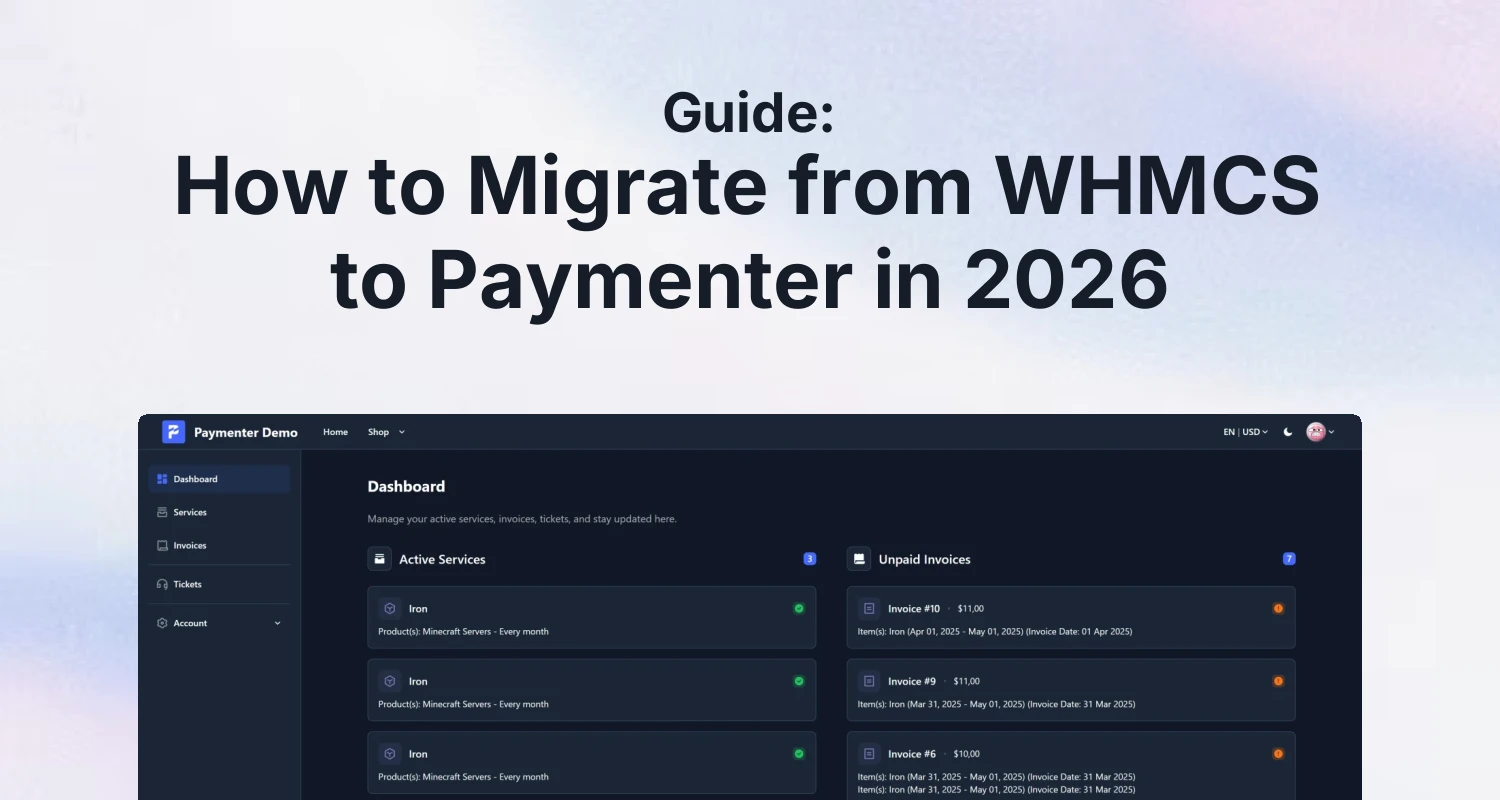
WHMCS raised its prices again on 1 January 2026, and this time it stung: the Plus tier went from $29.95 to $34.95 a month, Professional from $44.95 to $54.95, and the Business Unlimited tier jumped $300 to $1,999.95 a month (whmcsglobalservices.com). If you run a hosting business on WHMCS and you're tired of the yearly hike, Paymenter ships a built-in importer that can bring your clients, invoices and orders straight into a fresh Paymenter install.
This guide walks through that importer step by step: what it moves over, what to back up first, and the exact commands you'll run. It assumes you already have Paymenter installed and running — if you don't, see our Paymenter installation guide first.
Why hosting providers are leaving WHMCS in 2026
The 2026 increase wasn't a one-off. WHMCS has raised prices in three consecutive Januaries now, and for 2026 the model ties cost more directly to active client count across every tier (whmcsglobalservices.com). For a small hosting company on tight margins, an extra $5–$10 a month on the license doesn't sound like much until you stack it on top of three years of the same increase, and the jump is steeper the more clients you run:
| Tier | 2025 price | 2026 price |
|---|---|---|
| Plus (up to 250 clients) | $29.95/mo | $34.95/mo |
| Professional (up to 500 clients) | $44.95/mo | $54.95/mo |
| Business Unlimited | $1,699.95/mo | $1,999.95/mo |
Figures from whmcsglobalservices.com, effective from 1 January 2026. We already covered the broader case for switching in Paymenter: A Free WHMCS Alternative and compared the three platforms head to head in Paymenter vs WHMCS vs Blesta. This post is about the mechanics of actually making the move.
What the importer brings over
Paymenter's WHMCS importer is documented at paymenter.org/docs/guides/whmcs-importer. Run against a copy of your WHMCS database, it imports:
- Currencies
- Users (clients)
- Admins
- Categories
- Products
- Tickets
- Orders
- Services
- Service cancellations
- Invoices
- Payments
The documentation doesn't list anything it deliberately leaves out, so treat that as unverified rather than assuming domains, server provisioning settings or third-party addon data will follow along. Run the import against a staging copy first and check your product configuration, provisioning modules and any custom fields by hand afterward.
The official documentation is explicit on one point: "This will remove all existing data in your Paymenter installation! Make sure to back up your data before proceeding." (paymenter.org)
That means the importer is meant for a Paymenter installation you haven't started configuring yet — not one where you've already built out products and pricing. Plan the migration as a cutover, not a merge.
Planning the cutover before you run anything
Because the import is destructive on the Paymenter side and works from a snapshot of WHMCS, treat it as a one-way door rather than something you run repeatedly while customers are actively ordering on either system.
Test on a staging copy first
Spin up a second Paymenter installation (or a disposable one on a spare VM) and run the full import against it before you touch your production install. This is the only way to see what actually happened to your products, services and tickets without risking the live system, given that the documentation doesn't describe every edge case.
Freeze WHMCS orders during the final sync
Once you're happy with the staging run, pick a maintenance window, stop new orders and payments on WHMCS, take the final database dump, and run the real import into production Paymenter. Anything that happens in WHMCS after you take that dump won't be in Paymenter, so the shorter the gap between the dump and going live, the less you have to reconcile by hand.
Step by step: migrating your WHMCS database
1. Back up both systems
Back up your live WHMCS database before touching anything, and take a fresh backup or snapshot of your Paymenter install too, since the import wipes it. Dump WHMCS with mysqldump:
mysqldump -u root -p whmcs > whmcs.sql2. Create a temporary database on the Paymenter server
The importer reads from a database on the same server as Paymenter, so create one there and load your WHMCS dump into it:
CREATE DATABASE whmcs_temp;
GRANT ALL PRIVILEGES ON whmcs_temp.* TO 'paymenter'@'127.0.0.1' WITH GRANT OPTION;
mysql -u root -p whmcs_temp < whmcs.sql3. Run the import command
From your Paymenter installation directory, run the artisan command against the temporary database:
php artisan app:import-from-whmcs whmcs_tempPaymenter reads the database host, port and username for the connection from your .env file by default. If your setup needs different credentials, the documentation also shows passing them explicitly:
php artisan app:import-from-whmcs whmcs_temp username 127.0.0.1 33064. Clean up the temporary database
Once the import finishes and you've confirmed your clients, orders and invoices look right, drop the temporary database so you're not leaving a second copy of customer data sitting on the server:
DROP DATABASE whmcs_temp;After the import: what to check manually
Because the documentation doesn't spell out what's excluded, walk through these before you point DNS or send customers a login link:
- Provisioning modules. Reconnect each product to its Pterodactyl, Calagopus or other provisioning configuration in Paymenter — module settings from WHMCS won't map over automatically to Paymenter's extension system.
- Payment gateways. Re-enter API keys for your payment gateways inside Paymenter; credentials aren't something the importer can carry over.
- Custom fields and domains. If you sold domains or used custom order fields in WHMCS, check the imported products and services to see whether they came across, since the docs don't confirm either way.
- Support ticket history. Tickets are imported, but double check attachments and department mappings before you rely on old threads for context.
- Pricing and taxes. Currencies come across, but confirm tax rules, coupons and any recurring discounts still calculate the way they did in WHMCS before your first renewal invoice goes out.
- Client passwords. Don't assume WHMCS passwords carry over in a usable form; be ready to send customers a password reset link the first time they log in to the new portal.
Setting up Paymenter after the migration
Once your data is in and verified, a couple of things help the transition go smoothly for existing customers who are suddenly looking at a different portal. A Helpcenter/KnowledgeBase addon ($12.99, 5.0/5 from 6 reviews) gives migrated customers a place to find answers about the new portal without opening a ticket for every question, and comes with a live demo you can try before installing. If you're worried about carrying over problem accounts from WHMCS, the Security Addon ($5.99, 5.0/5 from 6 reviews) lets you block specific users, IPs, VPNs and alt accounts on the new install.
Neither is required to migrate — the importer and artisan command are all you need for the data move itself. These just help once your customers land on the new system.
Where to go for extensions afterward
Once you're running on Paymenter, our guide to Paymenter extension marketplaces covers where to find addons beyond what ships in core, and you can browse everything we sell for Paymenter, Pterodactyl and Calagopus at /resources. If you get stuck partway through a migration, the Paymenter/BuiltByOtte Discord is a reasonable place to ask before you're committed to the cutover.
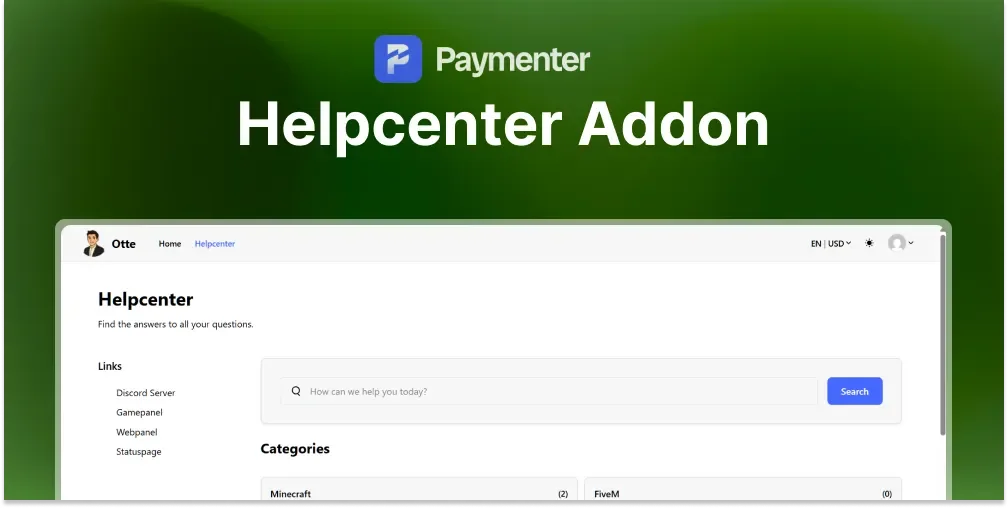 Helpcenter/KnowledgeBase | Paymenter
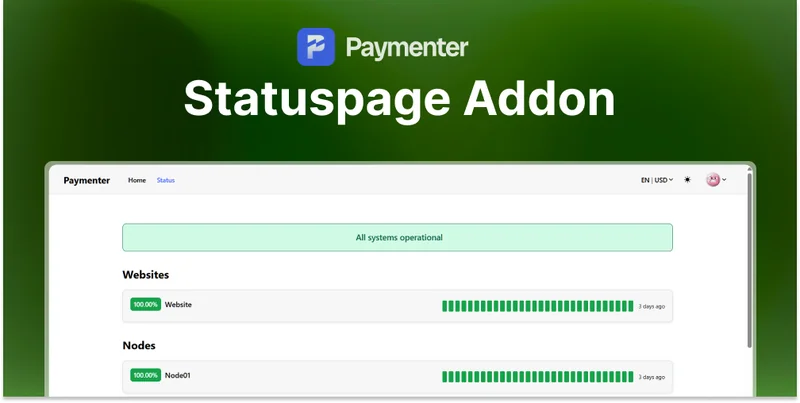 Statuspage Addon | Paymenter
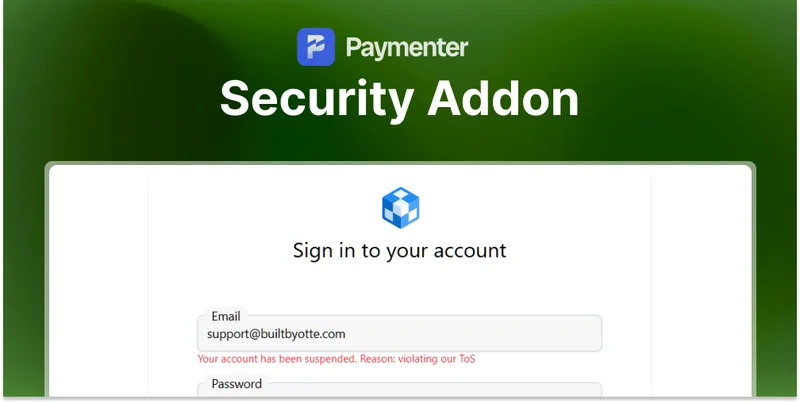 Security Addon | Paymenter